You can request a badge link for your app in AppGallery Connect.
Making a Badge
- Sign in to AppGallery Connect and go to All services > Distribute > AppGallery Download.
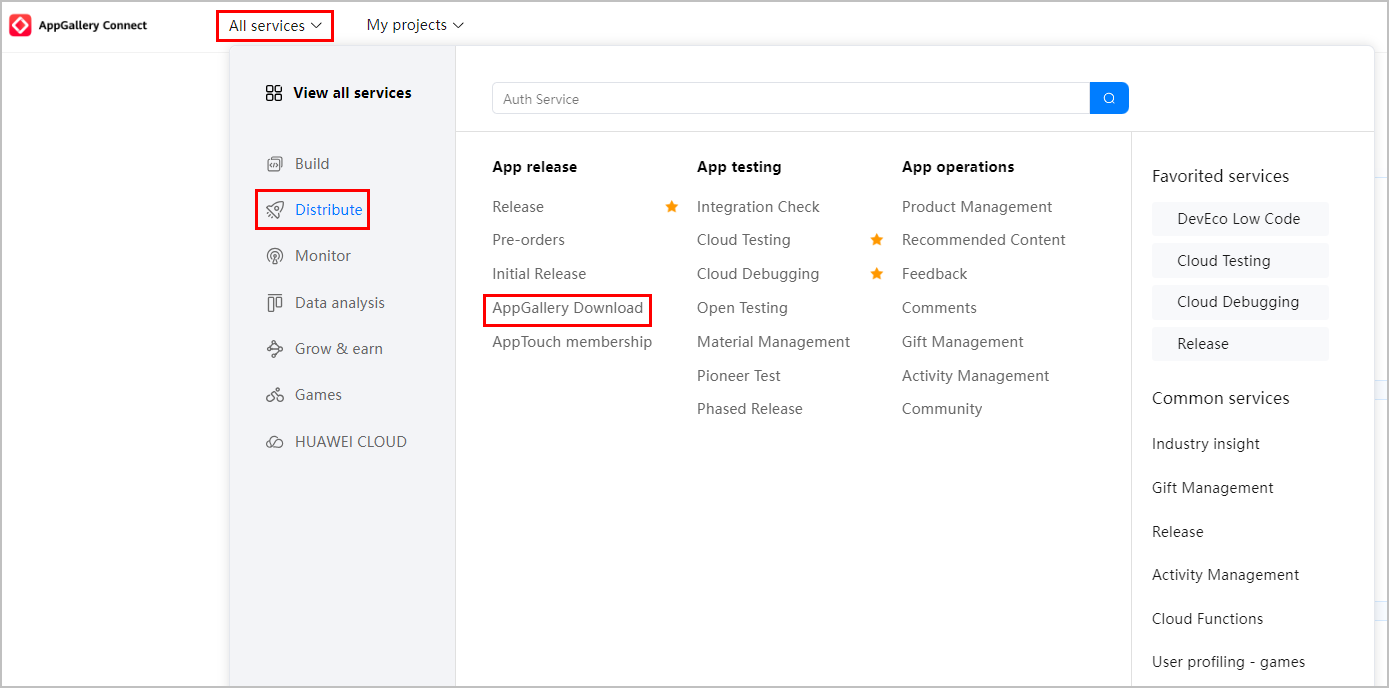
- Go to Badge links. The Make badge tab page is displayed.
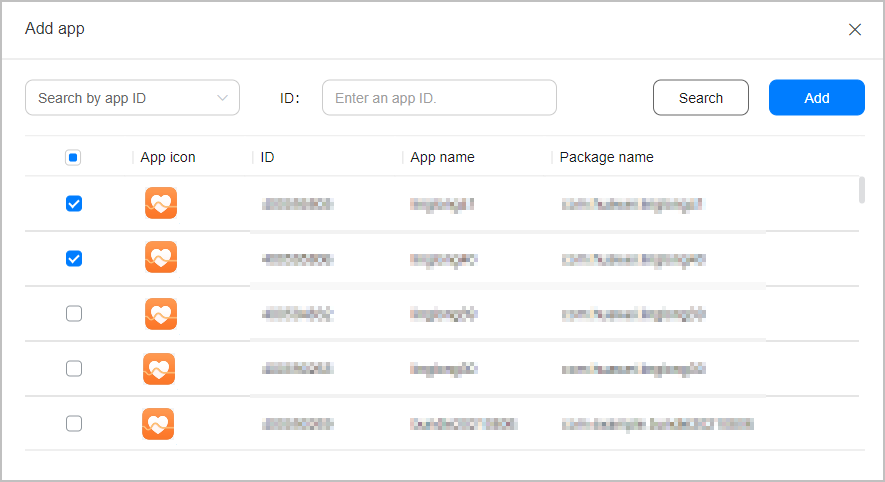
- Add an app.
- Click Add next to Add app ID.

- Select an app type, search for an app by ID or keyword, select one or more apps, and then click Add.

NOTICE
You can make only one badge but multiple links for each released app. You can:
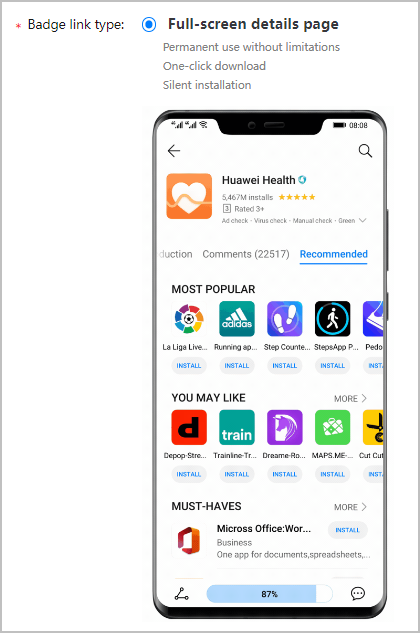
- Select a badge link type.
- Enter the channel information and select the badge display language.
Complete the following parameters:
- Channel name: Enter the name of the channel to which a badge link will be placed. AppGallery will analyze data by channel.
- Referrer: This parameter is optional. Set this parameter only when you want to further analyze attribution data. You can query the data by calling APIs.
- Associated iOS link: Enter an iOS link that can be associated with an Apple ID and redirects users to App Store in a maximum of 500 characters.
NOTE
If this parameter is not set, iOS users will not be redirected to App Store.
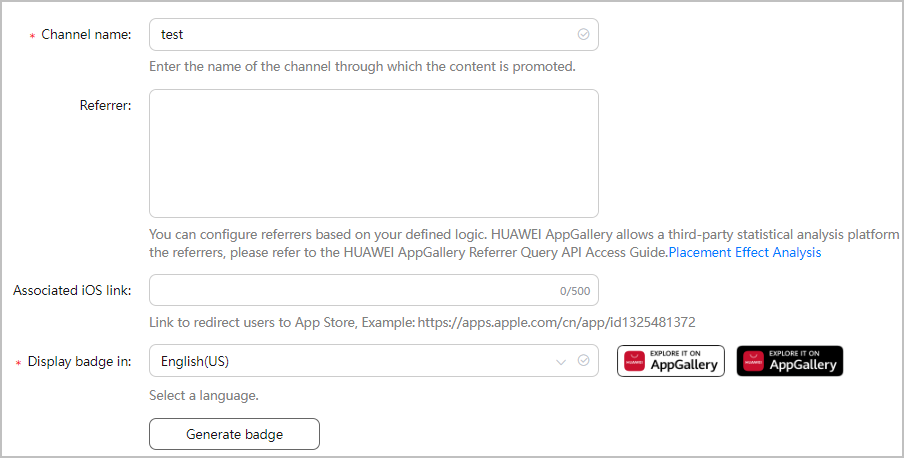
- Click Generate badge to obtain the badge and its link.
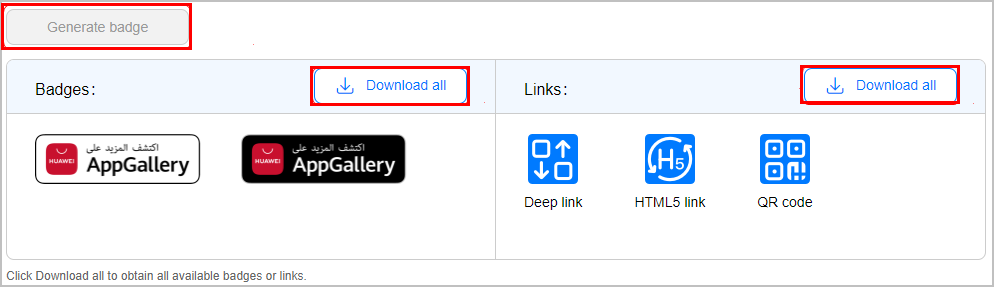
- Click Download all next to Badges to obtain the current badge in PNG format. You can also download the badge in multiple languages and formats.
- Click Download all next to Links to download an EXCEL file containing a QR code, a deep link, and an HTML5 link.
NOTICE
- HTML5 links and QR codes support both Huawei and non-Huawei devices, while deep links support only Huawei devices.
- If the QR code style does not meet your requirements, you can convert the HTML5 link into your required style using a third-party transcoding tool.
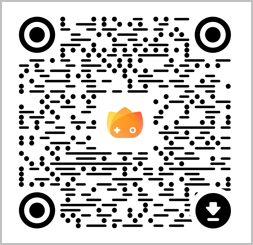
To obtain an optimized QR code, go to Search badge > Manage links and click QR code under Tracking link.
The following figure shows an optimized QR code with the app icon in the center.
Querying and Managing Badges
Go to Badge links. On the Search badge tab page, you can query badges by keyword, app ID, badge link type, and status.
Downloading a Badge
- To download a badge, click Download badge in the Operation column. By default, the badge in the language you have selected will be downloaded as a PNG file.

- To download the badge in multiple languages, click Download badges of all languages. In this way, you can obtain badges in multiple languages and formats (including AI, PNG, and SVG).

Managing Links
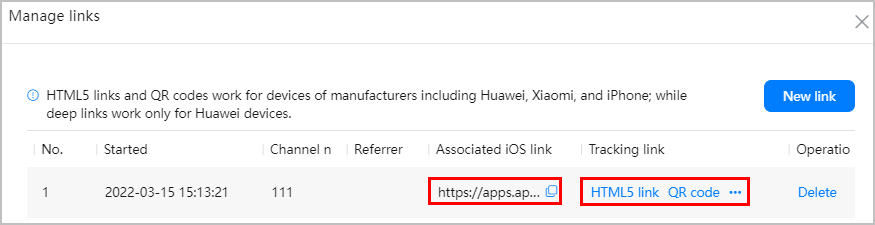
In the Operation column, click Manage links to obtain, create, or delete a link.
- You can obtain a link by link type, as shown in the following figure.
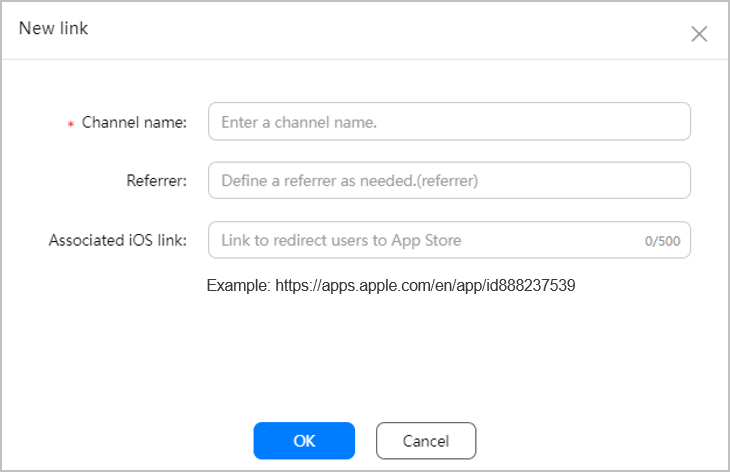
- To generate a link for another channel, click New link, enter the channel name and referrer in the displayed dialog box, and click OK.
- Channel name: Enter the name of the channel to which a link is placed. AppGallery will analyze data by channel.
- (Optional) Referrer: This parameter is optional. Set this parameter only when you want to further analyze data by entry on the same media. You can query the data by calling APIs.
- (Optional) Associated iOS link: Enter an iOS link that can be associated with an Apple ID and redirects users to App Store in a maximum of 500 characters.
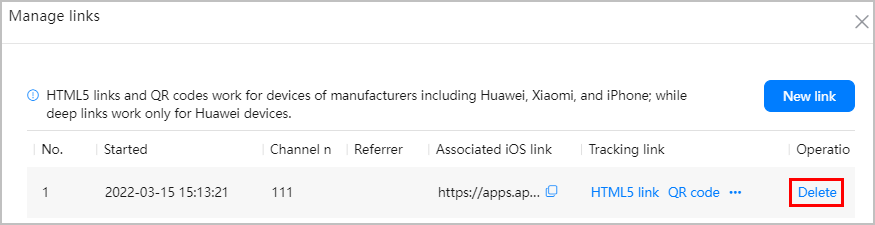
- To delete a link, click Delete, as shown in the following figure.
Deleting a Badge
To delete a badge, click Delete in the Operation column. In the displayed dialog box, click Delete.



